
System Settings
Speech Settings
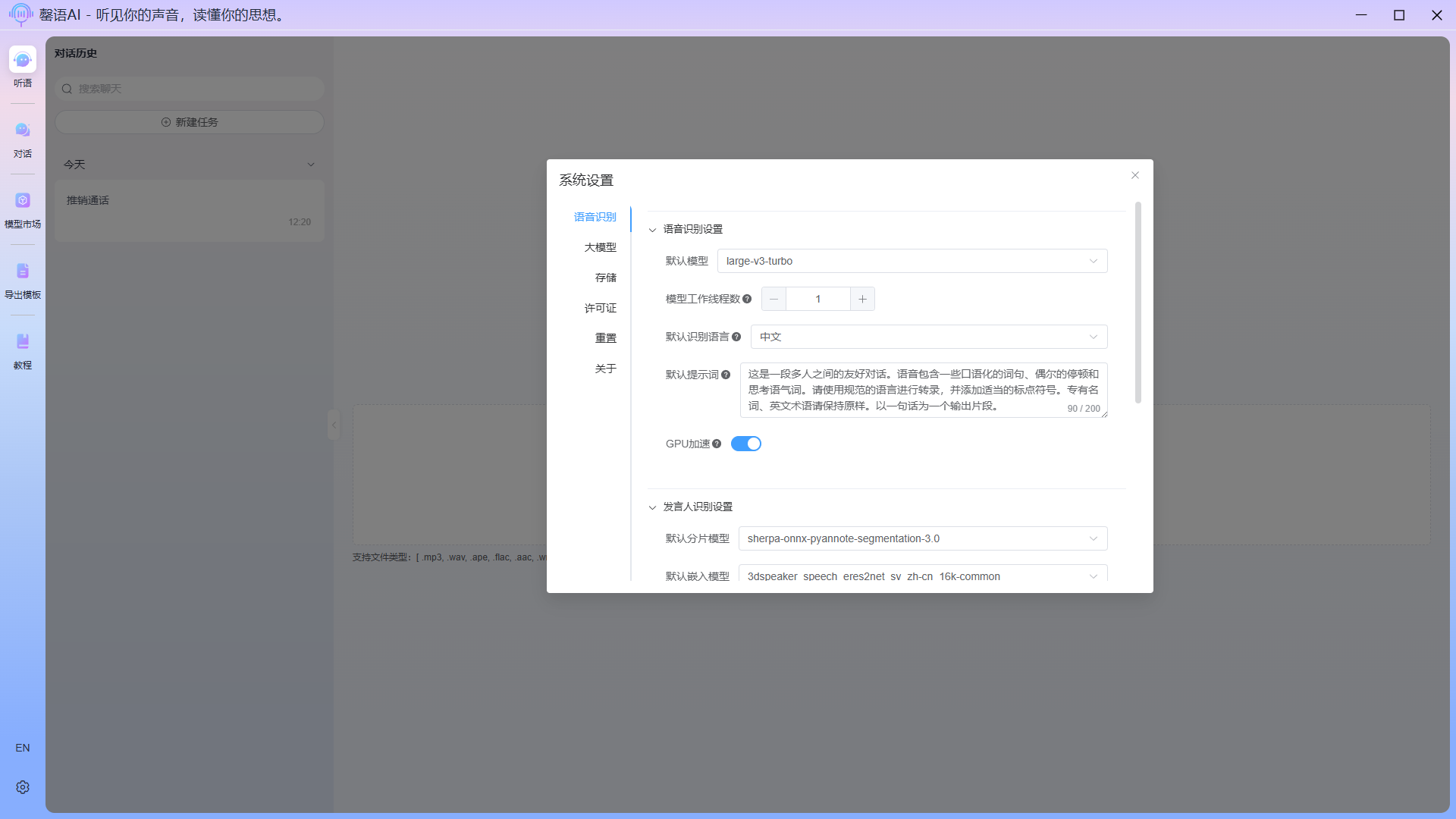
Configuration item description:
- Voice recognition settings
- Default model: In voice recognition, the default audio-to-text model is used.
- Number of model working threads: During the identification task, the number of threads enabled cannot exceed the number of CPU cores; otherwise, the device will experience noticeable lag. This applies only when GPU acceleration is not enabled.
- Default recognition language: In voice recognition, the default settings are for the types of languages that can be recognized.
- Default prompt: The default prompt word used in voice recognition.
- GPU acceleration: Enabling GPU acceleration can significantly improve the efficiency of speech recognition, but requires device support for Vulkan.
- Speaker identification settings
- Default segment model: The default audio segmentation model used in speaker recognition.
- Default embedding model: The default audio vectorization model is used in speaker recognition.
- Number of segment model working threads: In audio segmentation tasks, this refers to the number of threads used by the program to execute the task. For most tasks, setting it to 1 or 2 is sufficient.
- Number of embedded model working threads: In the audio vectorization task, this refers to the number of threads used by the program to execute the task. This is a time-consuming operation in speaker recognition, and it is recommended to increase it, but the total number of worker threads should not exceed the number of CPU cores, otherwise the device will experience noticeable lag.Total number of worker threads = Number of voice recognition worker threads + Number of segment model worker threads + Number of embedded model worker threads
- Minimum duration of speech clip(seconds): The segment model filters the minimum duration of speech segments, and audio segments below this value will be filtered out. It is not recommended to set too large a value, 0.2-0.5 is sufficient.
- Minimum duration of silent segment(seconds): The segment model filters the minimum duration of silent segments, and silent segments below this value will be filled or ignored. It is not recommended to set too large a value, 0.3-0.8 is sufficient.
- Voice activation threshold: This setting is a threshold to distinguish between effective speech and background noise. It is recommended to set it to 0.7-0.95.
- Optimization settings
- Default optimization model: The model used when intelligently optimizing the original content after speech recognition.
TIP
In speech recognition, the function of prompt words differs entirely from that of ChatGPT. They are not "commands" but rather preceding examples for the model to observe. The model will strive to mimic the style, vocabulary, and format of the prompt words when generating subsequent text. Only by understanding this principle can one craft truly effective prompts. The following tips can help you craft better and more stable prompts.
Tip 1: Provide contextual text, not a command list
Speech recognition isn’t a chatbot – it doesn’t understand “Do this…” or “Follow rule 1…”. It simply tries to continue the text you give it, mimicking its style, vocabulary, and format.
Weak prompt (imperative)
Rules: Add punctuation. Don’t drop English terms. One sentence per line.
Strong prompt (descriptive context)
This is a technical presentation. The transcript uses proper punctuation. All English terms are kept as-is. Each sentence appears on its own line.
Tip 2: Use the prompt to correct proper nouns and rare words
If your audio repeatedly contains specific names, product terms, or jargon, weave them naturally into the prompt. This dramatically reduces recognition errors.
For example, the audio discusses Whisper.cpp, but the model often writes whisper c plus plus:
- Prompt
This talk introduces high‑performance inference with Whisper.cpp.
When the model encounters a similar sound later, it’s far more likely to output Whisper.cpp.
Tip 3: Use soft constraints to control the output format
If you want the transcript in a certain shape, demonstrate that shape inside the prompt. Common needs:
- One sentence per line – end the prompt with “Each sentence is placed on its own line,” or format the prompt itself with short lines.
- Punctuation – the prompt must already use proper punctuation, and include “The transcript uses standard punctuation.”
- Preserve English – write “English terms and proper nouns are kept as‑is, not translated.”
Example (mimicking desired output format)
This is a conversation transcript. Every sentence is written on a separate line. All punctuation has been added properly. Terms like API and GPU are kept as‑is.
Tip 4: Guide the overall style with a “scene tag”
The scene description at the start works like a filter – it influences word choice and tone. Compare:
Formal lecture
This is an academic lecture. The language is formal and written.
Casual chat
This is a chat between friends. The tone is relaxed and conversational, with occasional laughter.
For the same audio, the scene tag will make the transcript more serious or more colloquial. The generic prompt you asked for says “may contain a single speaker or multiple speakers” precisely to avoid biasing the model in either direction.
Tip 5: Fix persistent errors (misheard words)
If a certain word is consistently transcribed incorrectly, casually demonstrate the correct spelling in the prompt.
For example, Stable Diffusion keeps coming out as stable defusion:
- Include in the prompt
We recently studied inference optimisation for Stable Diffusion models.
Seeing this context, the model is much more likely to write Diffusion when it hears that sound later.
Tip 6: Keep it short – don’t write a novel
An overly long prompt eats into the context window available for the audio itself, which can degrade transcription quality towards the end. A good rule of thumb is to stay within 200 tokens (roughly one or two sentences to a short paragraph). Put in only the most critical format and terminology cues.
Tip 7: Match the language of the audio
If the audio is in English, use an English prompt. If it’s in Chinese, use a Chinese prompt. Mixing languages in the prompt can confuse the model during language switching. Proper nouns can stay as‑is, but the framing description should match the audio language.
Quick reference template
Users can follow this structure to build their own prompts:
[Scene description]. The audio may include [casual/formal/technical] content. The transcript uses standard punctuation, and proper nouns such as XXX and YYY are kept as‑is. Each sentence appears on its own line.Example:
This is a product review meeting that may involve multiple speakers. The speech contains informal expressions and brief pauses. The transcript uses standard punctuation, and product code T6 and the term UED are kept as‑is. Each sentence appears on its own line.
LLM Settings
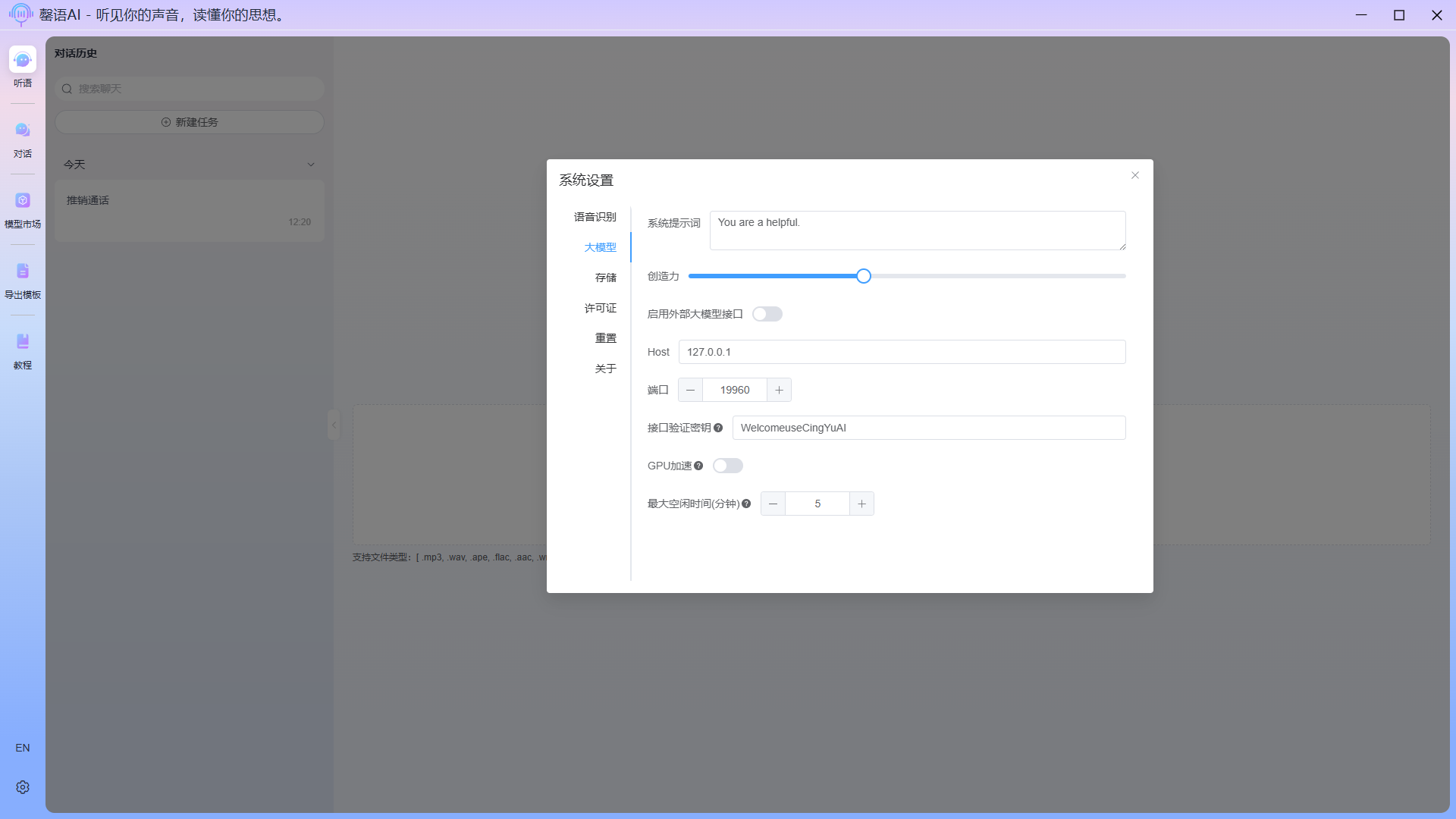
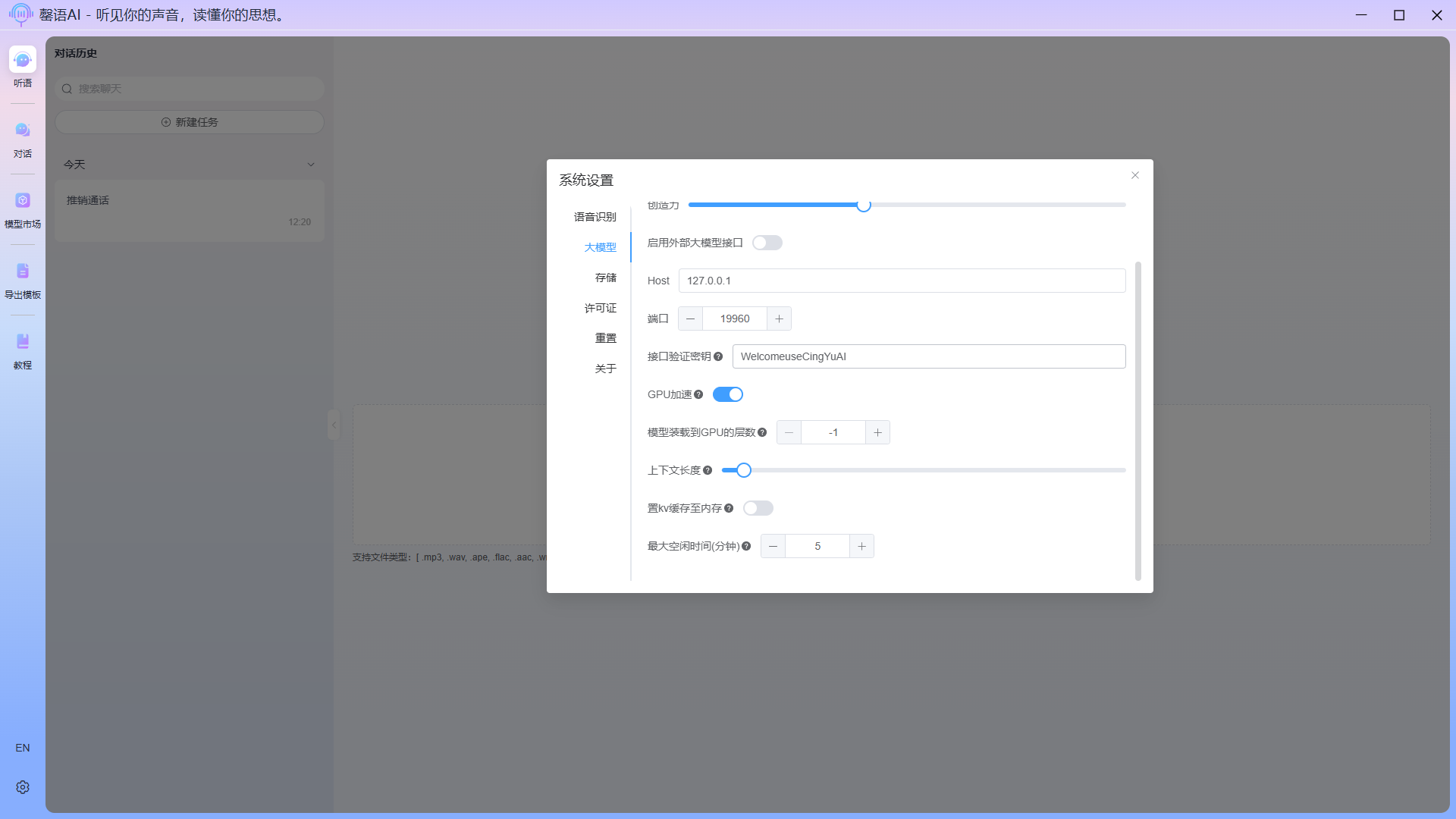
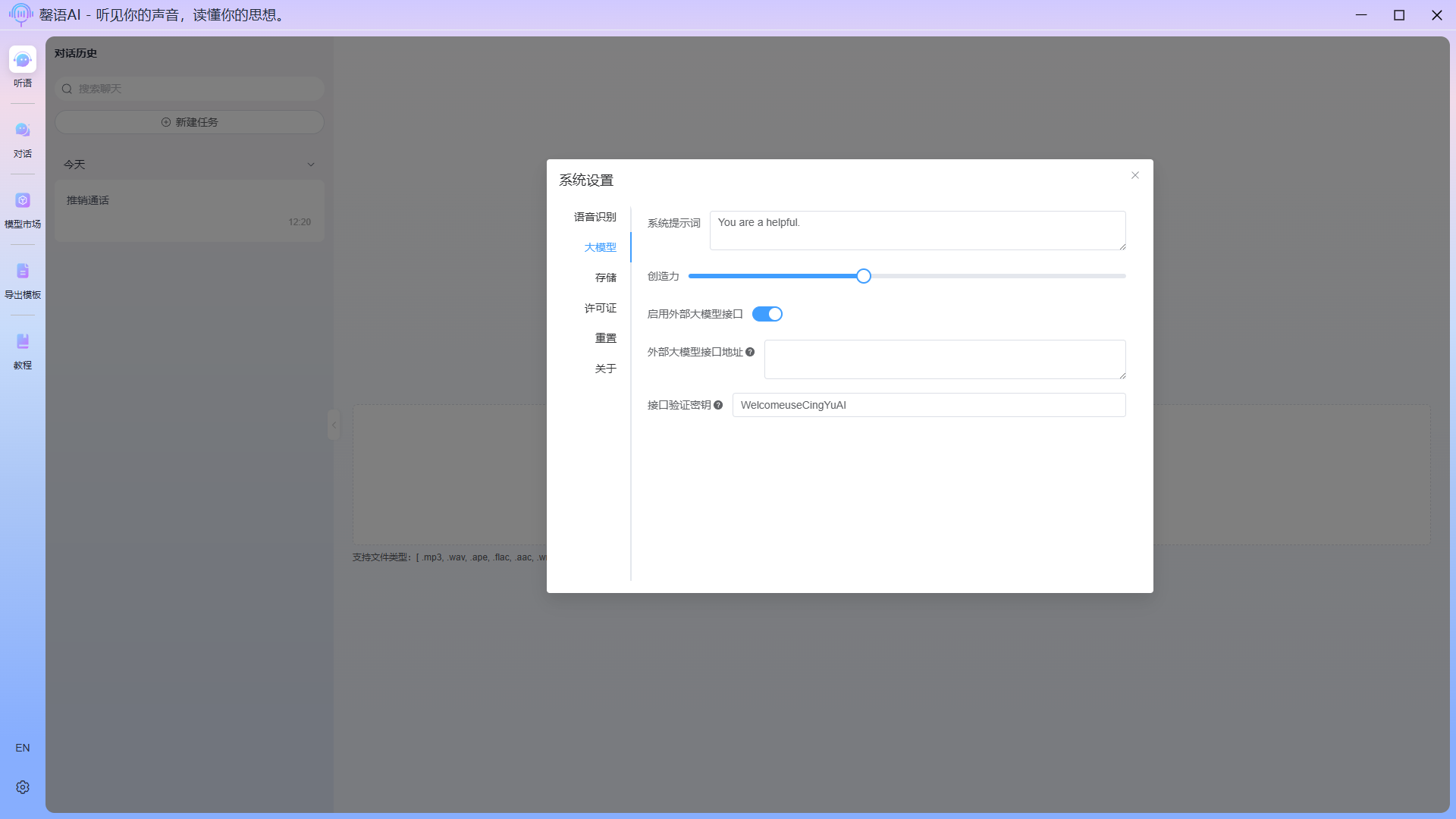
Configuration item description:
- Sytem prompt: When interacting with llm, the system prompts primarily serve to define the AI's identity, define behavioral boundaries, control output style, and provide contextual information. If you are unsure how to write them, please do not change them arbitrarily.
- Creativity: The smaller the setting, the more fixed the output content; conversely, the larger the setting, the more imaginative the AI becomes when generating content.
- Open extelnal llm api: When you need to use an external API to communicate with the model, activate this configuration option and fill in the corresponding external llm interface address (External base url) and interface verification key (authKey). The external llm interface only supports OpenAI type interfaces.
- Host:Please be careful when changing the hostname used to start the llm dialogue service.
- Port: Please be careful when changing the port number used to start the llm dialogue service.
- Auth key: The key used when communicating with llms.
- GPU acceleration: Enabling GPU acceleration can significantly improve the efficiency of model content generation. Vulkan support needs to be configured.
- Number of model layers to GPU: This is a configuration item for CPU+GPU hybrid inference or full GPU inference, with values greater than -1/0/indicating full GPU inference. The number of digits corresponds to the number of layers of neural networks placed on the GPU. If your GPU resources are limited, you can try setting them up and testing them according to your situation to ultimately determine the best value that suits you.
- Context length: The context length during content generation by llm (context length = input content + historical content + generated content; errors occur when the length exceeds the set limit). A larger setting consumes more GPU memory, with a default setting of 4K.
- Cache KV to memory: Putting the KV cache data of the llm into memory can reduce the usage of GPU memory, but it will slow down the speed of generating content for the model. The size of the KV cache is related to the context length, and the larger the context length, the larger the KV cache.
- Maximum idle time(minutes): The maximum idle time of the local llm backend. When the time of not using the large model function exceeds the current set value, the application will automatically release the large model service resources in the background.
Storage
The storage settings allow you to modify the model's storage directory and temporary file directory. When disk space is insufficient, you can also clear temporary files. 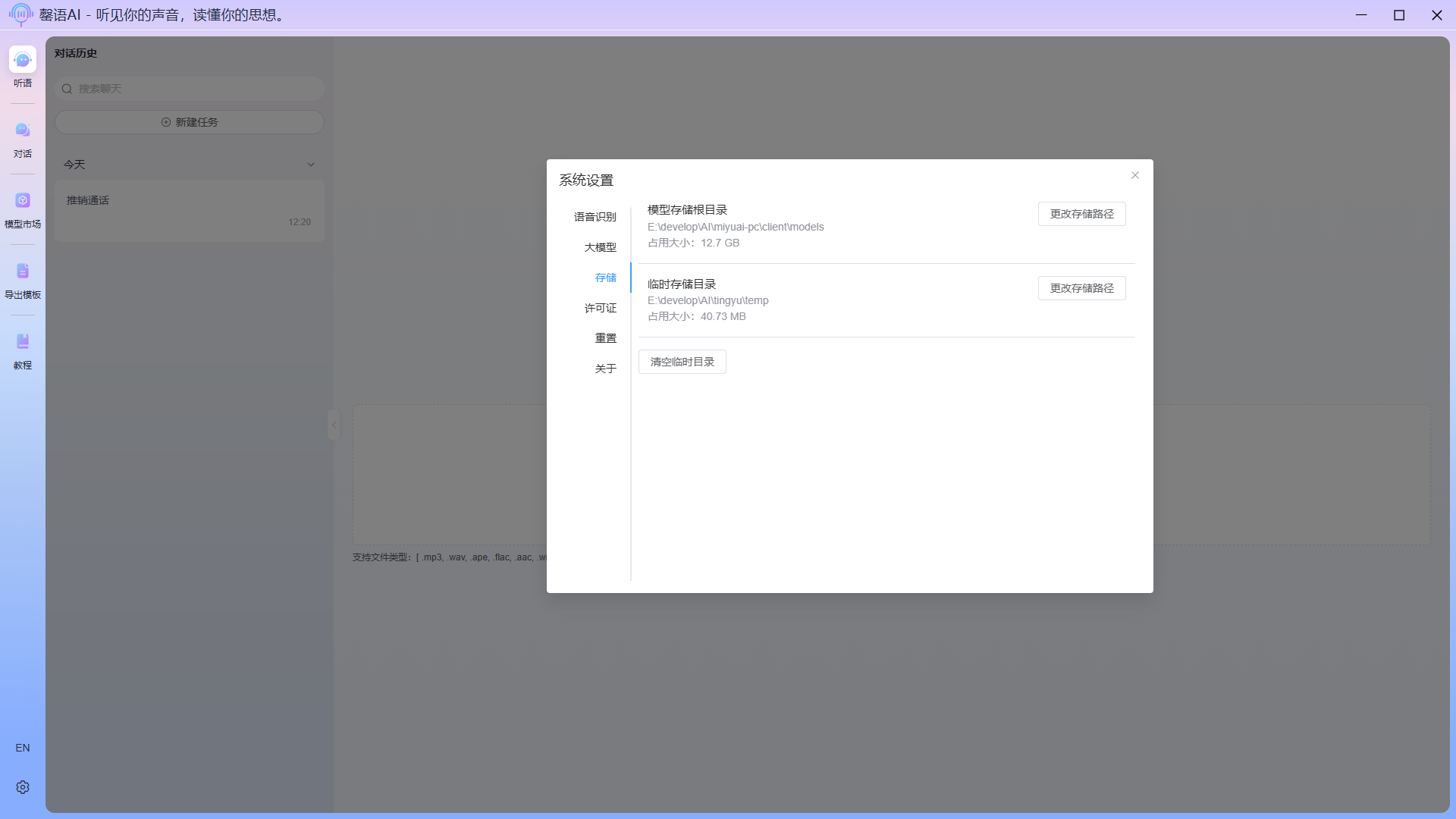
License
Displays the current device's license information and the functional differences between the corresponding license version. 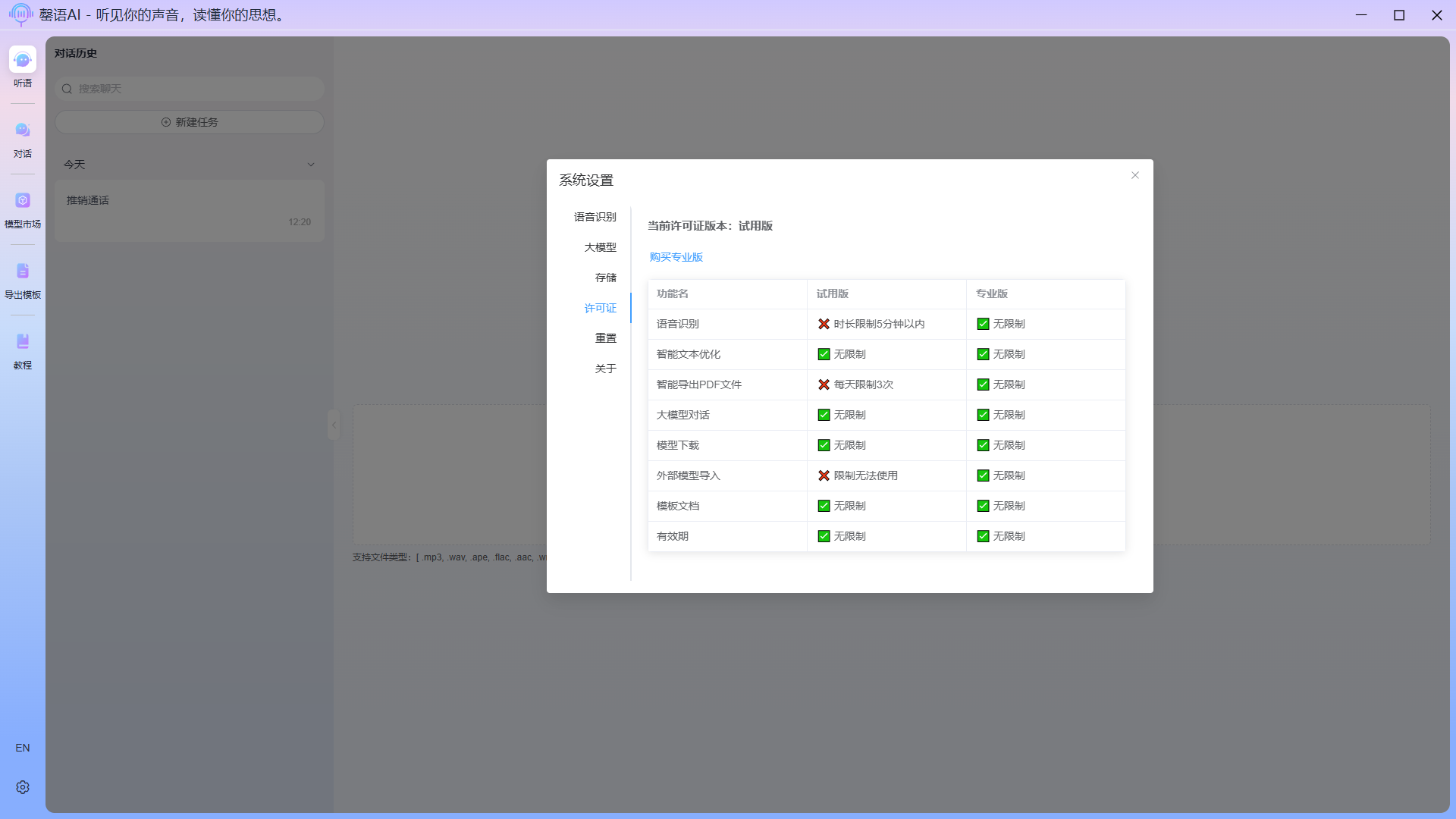
Reset
Clicking Reset System Configuration will restore the system configuration to its initial state and automatically restart applications. 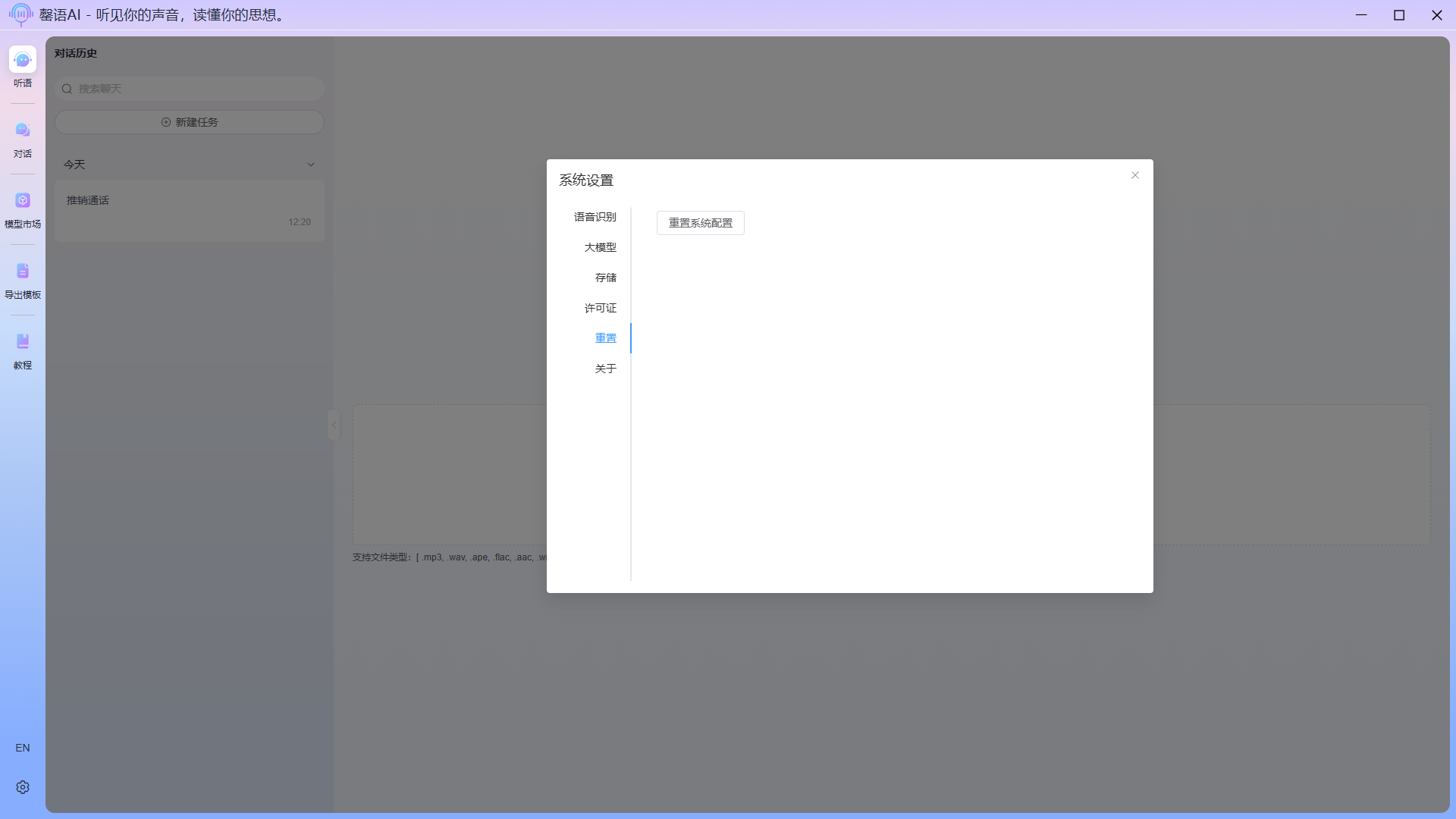
About
This page displays information such as the application version number and official website address.